

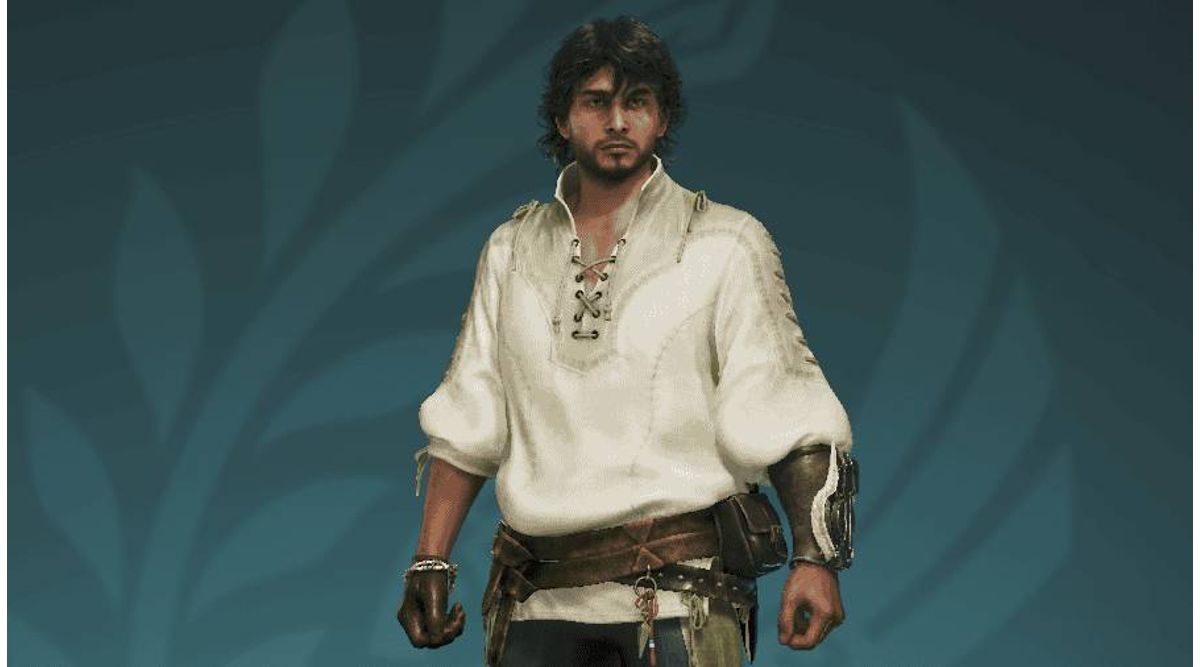
When diving into the world of Monster Hunter Wilds, one of the most exciting moments is creating your character. However, many players are unsure about how to import their beta test character into the full game. Fear not! This guide will walk you through the process step-by-step, ensuring that your unique look carries over seamlessly.
Understanding the Import Process
First things first, let’s clarify the basics. Unlike many games that automatically carry over your previous character designs, Monster Hunter Wilds requires a manual import process. When you first start the game and reach the character creation screen, you won’t see your beta character data automatically. Instead, look for the “Beta Test Data” option located at the very bottom of the menu. It’s easy to miss, but it’s your gateway to restoring your previous look.
Precautions Before Importing
Before you proceed, I recommend saving any customizations you’ve made. Why? Because selecting the “Beta Test Data” option will override any existing changes you’ve made to your character. If you realize later on that you preferred your original look, you can restore it easily. So, take a moment to document your current design before making the switch.
Individual Import for Hunter and Palico
It’s important to note that the import process needs to be completed separately for both your hunter and your Palico. This means you’ll need to go through the same steps on both customization screens. If you wish to restore both characters from the beta test, don’t forget to select that bottom-most option on each screen. It may seem tedious, but it ensures that both of your characters reflect your original vision.
Troubleshooting Import Issues
If you find that the “Beta Test Data” feature isn’t working for you, don’t panic. There could be various reasons behind it. For instance, if you overlooked the menu option, it can easily happen. The option is highlighted in a different color but can still be missed. If you did miss it, you have the ability to change your character’s appearance later on, although you may need a “Character Edit Voucher” or “Palico Edit Voucher” to do so.
Conclusion: Enjoying Your Adventure
So, there you have it! Importing your character from the Monster Hunter Wilds beta is straightforward when you follow these steps. Whether you’re an experienced player or a newcomer, preserving your character’s unique style adds a personal touch to your gameplay experience. With these insights in hand, you’re ready to embark on your adventure with confidence. Happy hunting!